The impact is measurable. Zendesk research shows that 3 in 10 agents cannot reliably access customer information, directly contributing to negative customer experiences. When agents must toggle between systems mid-conversation, they lose context, miss critical details, and deliver slower resolutions.
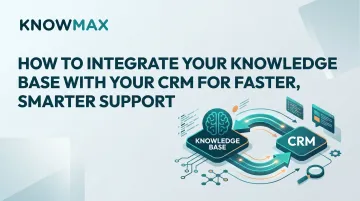
This guide walks through the exact steps to integrate your knowledge base with your CRM, what to prepare beforehand, what variables determine success, and the mistakes most teams make that undo the effort.
TL;DR
- KB-CRM integration puts resolution content inside the agent's workspace — no tab-switching, no searching across systems
- Before any technical setup, audit your KB content, map CRM workflows, and choose the right connection method
- Content quality drives real support improvement — technical configuration alone won't get you there
- Most integrations fail due to stale articles, misconfigured permissions, or agents who never learned the new workflow
- Without ongoing content reviews and governance, gains erode — treat maintenance as part of the integration, not an afterthought
How to Integrate Your Knowledge Base with Your CRM: Step-by-Step
Step 1: Audit and Prepare Your Knowledge Base Content
An integration only multiplies the impact of what's already in your knowledge base—for better or worse. Analysis from Cresta IQ reveals that most contact centers maintain FAQ coverage rates of only 10-12%, while even industry leaders achieve just 70% coverage. SQM Group's 2024 FCR Benchmark found that 38% of non-first-contact resolution errors stem from agent skills and knowledge gaps.
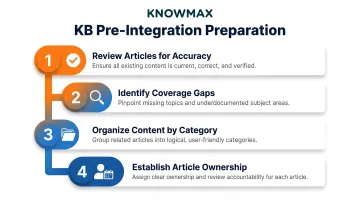
Before integration:
- Review existing articles for accuracy and completeness — outdated or incomplete content will surface during customer interactions, training agents to distrust the tool
- Identify coverage gaps — map your top query types to existing articles and flag where documentation is missing
- Organize content into clear categories aligned with query types agents handle (billing, technical issues, policy questions) so contextual search returns relevant results
- Establish article ownership and review cadence — assign responsibility for each content category and set update schedules before launch
Research from Supportbench shows the top 10 KB articles account for 80% of total traffic, meaning content decay in these files has disproportionate impact on agent performance.
Step 2: Map Knowledge Base Content to CRM Workflows and Use Cases
Define the specific moments in your CRM workflow where knowledge retrieval matters most:
- Ticket triage — Decision trees or quick-reference guides to route issues correctly
- Live call handling — Step-by-step troubleshooting workflows and FAQs for real-time resolution
- Post-interaction follow-up — Summary articles or policy documents agents can send to customers
- Escalation routing — Technical documentation or product guides for specialized teams
Identify CRM fields, ticket tags, or queue labels that can trigger contextual KB suggestions. For example, a ticket tagged "device troubleshooting" should automatically surface device-specific guides when the agent opens the record.
Document which user roles (agents, supervisors, QA) need access to which KB categories—this informs permission settings in the next step.
Step 3: Choose Your Integration Method and Configure the Connection
With your workflows mapped and permissions defined, the next decision is how to connect the two systems. Three main approaches exist:
| Method | How It Works | Setup Time | Best For |
|---|---|---|---|
| Native/Marketplace | Pre-built connector from the KB platform's CRM marketplace listing | Minutes to hours | Teams on Salesforce, Zendesk, Freshworks, Genesys, or Talkdesk — Knowmax is listed on all five |
| API-based | Custom data flows via REST APIs; your team writes and maintains the code | Days to weeks | Organizations needing full endpoint flexibility |
| Middleware/iPaaS | Third-party tools like Zapier or MuleSoft orchestrate sync between systems | Days | Teams wanting more flexibility than native connectors without full custom development |
Regardless of method, key configuration steps include:
- Authenticating both systems
- Setting up data field mappings
- Defining trigger conditions for KB content surfacing
- Configuring user permission levels to control which agents see which content
Step 4: Test, Train, and Roll Out to Your Support Team
Run a controlled pilot with a subset of agents on a defined ticket queue before full deployment. Measure:
- Search relevance
- Article retrieval speed
- Whether agents are actually using the KB widget or reverting to manual searches
If agents aren't clicking through to articles, that's a signal worth investigating. The cause is usually one of three things: surfaced suggestions are off-topic, load times are too slow, or the KB widget isn't visible enough within the CRM interface.
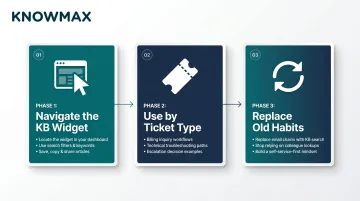
Structured onboarding should cover three areas before full rollout:
- Navigate the KB widget — where it lives in the CRM, how search works, and available article actions
- Use it by ticket type — give agents workflow examples for billing queries, technical issues, and escalations
- Replace old habits — be explicit that the KB replaces messaging colleagues or digging through email threads for answers
When Should You Integrate Your Knowledge Base with Your CRM?
Integration is not the right move for every team at every stage. If your knowledge base is thin, outdated, or inconsistently structured, integration will surface poor results — and agents will stop trusting it within weeks.
Signals of readiness:
- KB is already used regularly by agents, even if accessed separately
- CRM tickets are consistently tagged or categorized
- Support team handles high volumes of repetitive queries that slow resolution times
McKinsey's analysis across 30+ organizations shows 50-60% of interactions are transactional—simple, repetitive queries like bill payments, refund requests, and plan inquiries. This signals high potential for KB-driven resolution.
Integration pays off fastest in:
- Contact centers handling high ticket volumes with multiple agents working the same issue types
- Organizations that recently expanded their product or service catalog and need agents ramped up fast
- Companies running omnichannel support where consistent answers across channels are a strategic requirement
That consistency pressure is real. Zendesk benchmark data shows 70% of customers expect every agent they reach to have full context of their situation, and 62% expect experiences to flow naturally between physical and digital channels.
What You Need Before Integrating
Teams that rush to connect systems before their KB is structured or CRM fields are mapped typically see low adoption — and abandon the setup within weeks. Getting these fundamentals in place first is what separates a smooth rollout from a costly restart.
Technical and System Requirements
- Confirm API access or marketplace connector availability for both the CRM and knowledge base platforms
- Verify both systems are on supported versions
- Check whether SSO (single sign-on) is configured, as it affects how permissions will be managed post-integration
Content and Workflow Readiness
Ensure the KB has a defined taxonomy — categories, tags, and article types — that maps to how agents classify tickets in the CRM. The typical benchmark: the top 20 query categories cover 80% of ticket volume. Confirm at least these have accurate, complete articles before going live.
Governance doesn't end at launch. Put the following in place before you go live:
- Assign a named content owner or team responsible for KB accuracy post-integration
- Establish an update workflow so that product, policy, or process changes trigger KB article revisions before agents encounter stale content through the CRM widget
Key Factors That Affect Integration Success
After the technical connection is made, the quality of outcomes depends on a set of operational and configuration variables. Two organisations with the same CRM and KB platform can get dramatically different results based on how these factors are managed.
Search Quality and AI-Powered Retrieval
The integration is only as useful as the KB's search engine. If agents must type exact keywords to retrieve articles, retrieval will be slow and inconsistent, particularly for new agents who don't know the right terminology.
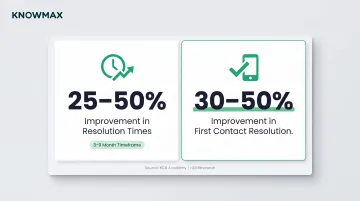
Organisations adopting Knowledge-Centered Service report 25-50% improvement in resolution times within 3-9 months and 30-50% improvement in first contact resolution. KB platforms with intent-based AI search understand what the agent is trying to resolve, not just the words typed — closing the gap between how agents ask questions and how articles are titled.
For example, Knowmax's AI search resolves terminology mismatches so an agent searching "can't log in" retrieves articles titled "Authentication Failure Resolution Steps," without requiring keyword precision.
Content Taxonomy Alignment with CRM Data
If KB categories and article tags don't mirror ticket classification fields in the CRM, contextual auto-suggestion won't work. The system can't surface the right article for a "billing dispute" ticket if the KB has no matching category.
Teams that align their KB taxonomy to their CRM ticket taxonomy before going live see faster agent response times. Relevant articles surface automatically, removing the need for manual search mid-conversation.
Permission Configuration and Access Control
Different agent tiers, teams, and geographies may need access to different subsets of KB content. Surfacing restricted or irrelevant content to the wrong agents creates both confusion and compliance risk.
The regulatory stakes are real. HIPAA Security Rule 45 CFR 164.312 mandates Access Control as a required standard, including Unique User Identification and Emergency Access Procedures. GDPR Article 83 establishes fines of up to €10 million or 2% of total worldwide annual turnover for security violations. Proper role-based access ensures agents see only the content they're authorised to act on.
Sync Frequency and Update Mechanisms
If the KB is updated but the CRM integration continues to serve an old article version, agents will give customers wrong information — and they won't know it until something breaks.
A typical SaaS team rolls out 4-8 changes per week, affecting 16-40 KB articles every month. To keep the integration accurate:
- Define the sync interval for your use case (real-time sync vs. scheduled batch updates)
- Flag articles pending update so the integration layer holds them from active surfacing
- Confirm the updated version is live before clearing the review flag
Common Mistakes When Integrating a Knowledge Base with Your CRM
Integrating before the KB is ready: Going live with a knowledge base that has thin coverage, inconsistent formatting, or outdated articles trains agents to distrust the tool within days. Once agents stop using it, re-adoption is extremely difficult.
Skipping the workflow design step: Many teams configure the technical connection but never define when and how agents are expected to use the KB within the CRM flow. The result is that the KB widget is present but agents default to old habits—calling a colleague, guessing from memory.
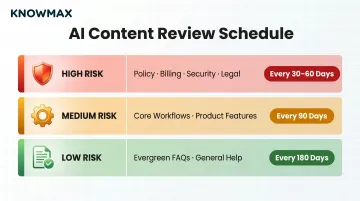
Ignoring post-launch content governance: Without a defined owner and review schedule, articles drift out of date — and the CRM surfaces wrong answers with the same confidence as correct ones. Supportbench recommends tiered review cadences based on content risk:
- High Risk (policy, billing, security, legal): every 30–60 days
- Medium Risk (core workflows, product features): every 90 days
- Low Risk (evergreen FAQs): every 180 days
Skipping agent training: Assuming agents will naturally adopt the integrated workflow without structured guidance leads to patchy adoption. Agents who don't understand intent-based search logic or decision tree navigation will use it inefficiently and conclude it isn't useful.
Troubleshooting Common Integration Issues
Even well-configured integrations run into problems in the first few weeks of operation. The three issues below cover the most common failure points — and what to do about each.
Problem 1: Agents report that KB search results are irrelevant or off-topic
The KB taxonomy is likely misaligned with CRM ticket fields, or the search engine is defaulting to keyword matching instead of intent-based retrieval. An agent searching "can't log in" may never surface an article titled "Authentication Failure Resolution Steps."
To fix this:
- Review article tags and confirm they match the language agents actually use in ticket fields
- Enable or reconfigure AI-powered search settings if the platform supports intent-based retrieval
- Run a sample test across the 10 most common ticket types and verify the top result is the correct article
Problem 2: KB articles surfaced in the CRM are outdated despite updates being made
The most likely culprit: sync frequency is set to batch intervals (nightly, for example), so the CRM serves a cached version of the article rather than the latest published content.
Two things to check:
- Verify the sync schedule and confirm whether your integration supports real-time or near-real-time refresh
- Flag articles as "pending review" in the CRM widget during active KB updates, so agents know not to rely on potentially stale content
Problem 3: Integration breaks or stops syncing after a CRM or KB platform update
Platform version updates — on either the CRM or KB side — can deprecate API endpoints, alter field structures, or force re-authentication. Middleware and custom API integrations are especially exposed to these breaking changes.
Steps to take:
- Set up automated monitoring alerts on the integration layer to catch sync failures before agents notice them
- Keep a documented runbook for re-authenticating the connection and remapping fields after major updates
- For native or marketplace integrations, review the platform's changelog for compatibility notes before applying any update
Frequently Asked Questions
What is the knowledge base in CRM?
A knowledge base in CRM refers to a repository of articles, guides, and resolution content integrated directly into the CRM interface. Agents retrieve support content from the same workspace where they handle customer interactions — no tab-switching required.
What are the 4 types of CRM?
The four types are operational (automating sales, marketing, and service workflows), analytical (deriving insights from customer data), collaborative (aligning teams around shared customer information), and strategic (focused on long-term relationship development). Knowledge base integration is most relevant to operational CRMs used by support teams.
What is an example of CRM integration?
A support team using Salesforce Service Cloud integrated with a knowledge base platform is a practical example. Opening a ticket automatically surfaces the three most relevant KB articles based on the ticket category and customer history, enabling the agent to resolve the issue faster without leaving the CRM.
What are the benefits of integrating a knowledge base with a CRM?
The main gains are lower average handle time, higher first-contact resolution, and more consistent responses across agents and channels. Contact centers with KM systems see 24% greater FCR rates than those without.
How long does it take to integrate a knowledge base with a CRM?
Native marketplace integrations can go live in days; API or middleware integrations typically take 2-6 weeks of configuration and testing. The most time-intensive phase is usually pre-integration KB content preparation, not the technical connection itself.
Can a knowledge base integration work across multiple CRM platforms?
Yes. Enterprise KB platforms can connect to multiple CRMs simultaneously, supporting teams that use different tools by region, channel, or function. The KB platform needs multi-CRM connector support, and content taxonomy must align with each CRM's ticket classification logic.