Introduction
Enterprise teams face a familiar problem: years of institutional knowledge scattered across Word documents, PDFs, SharePoint folders, legacy intranets, and outdated help desk wikis. McKinsey research shows knowledge workers spend 1.8 hours per day — 9.3 hours per week — searching for information. That time compounds into slower resolutions, inconsistent answers, and agents making judgment calls on information they can't quickly verify.
Migration isn't a copy-paste job. Outcomes vary dramatically based on pre-migration preparation, content structure, platform compatibility, and governance decisions made before a single document is moved. A KMWorld survey found 54% of businesses use more than five tools for documentation and information sharing, multiplying the complexity.
This guide covers:
- What legacy document migration actually requires
- How to audit and prepare content before the move
- A step-by-step execution approach
- The key variables that determine whether you lose anything
- The mistakes most teams regret
TL;DR
- True migration preserves structure, metadata, formatting, relationships, and findability — file transfer is just the starting point
- Start with a content audit — Veritas Global data shows 28% of enterprise content is redundant, obsolete, or trivial and shouldn't migrate at all
- Follow four steps in order: audit, structure and tag, import and validate, then govern
- Migration quality hinges on format diversity, taxonomy design, metadata preservation, and access permissions
- Most migrations fail not during import, but afterward, when there's no content governance plan in place
What Legacy Document Migration Actually Involves
Legacy document migration means extracting institutional knowledge from scattered, aging formats — PDFs, Word files, spreadsheets, old ticketing systems, wikis — and consolidating it into a single, searchable, structured knowledge base that agents and customers can find and rely on.
"Losing something" during migration doesn't always mean a missing file. For CX and support teams, it typically means:
- Broken internal links between related articles
- Stripped formatting that makes step-by-step guides unreadable
- Lost categorization that makes content unsearchable
- Detached attachments that become inaccessible
- Orphaned documents no one can find or maintain
The scale of the challenge varies enormously. A team migrating 50 clean Word documents has a manageable problem. A team migrating 3,000 documents across six formats, three legacy systems, and two languages has a fundamentally different one.
Before You Start: How to Audit Your Legacy Documents
The audit phase determines how much time you waste post-migration fixing structural and content quality issues. According to APQC's formal content audit methodology, identifying and assessing knowledge content across systems is essential for keeping it "fresh and findable."
Take a Full Inventory of Legacy Content Sources
List every location where knowledge currently lives:
- Shared drives and network folders
- Email threads and attachments
- Ticketing system articles
- Intranet pages
- Training manuals and SOPs
- Legacy CMS or wiki platforms
Note the format, owner, and approximate age of each source. M-Files found that 83% of employees recreate files that already exist because they cannot find them — a problem that compounds when those duplicates get migrated.
Apply the Three-Bucket Content Triage
Categorize every piece of content into one of three buckets:
- Migrate as-is — Current, accurate, well-formatted content ready to transfer
- Migrate after cleanup — Valuable content that needs reformatting, updating, or restructuring
- Archive or delete — Outdated, duplicated, or inaccurate content
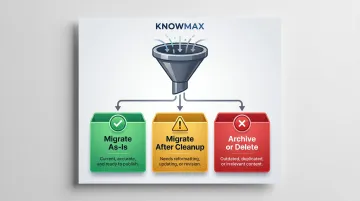
In practice, content audits routinely surface 20-30% outdated or irrelevant material, with significant overlap across tools. Migrating everything without this triage creates a new cluttered system instead of a clean one.
Evaluate Content Structure Readiness
Ask whether legacy content has:
- Clear headings and logical flow
- Topic focus (one subject per document)
- Structured formatting
Long unstructured documents where multiple distinct pieces of knowledge are buried together need to be broken apart before migration. SoftServe's documented Confluence-to-SharePoint migration took about six months total, with two months dedicated to content preparation alone.
Assess Metadata and Tagging
Identify what metadata exists:
- Author and content owner
- Last updated date
- Topic category
- Audience type (agent vs. customer)
- Version history
CMSWire practitioners warn that missing or inconsistent metadata is a primary obstacle during migration. Create or standardize metadata before import. It's what makes migrated content searchable and maintainable once it lands in the new system.
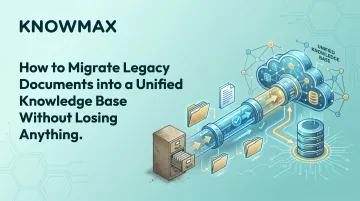
How to Migrate Legacy Documents into a Unified Knowledge Base
Following these steps in sequence matters. Teams that jump straight to importing pay for it during validation.
Step 1: Design Your Target Knowledge Architecture First
The destination knowledge base needs a defined taxonomy — categories, subcategories, content types, and audience labels — before a single document is imported. Importing into an undefined structure recreates the silo problem in a new location.
Map legacy content to the new taxonomy:
- Identify which old folder structures translate cleanly
- Redesign categories to reflect how agents actually search for information
- Align with user intent, not historical filing conventions
- Define content types (FAQs, procedures, troubleshooting guides, policies)
Platforms like Knowmax support multi-level category hierarchies, content type labelling, and audience segmentation, enabling teams to structure content for both agent-facing and customer-facing use from day one.
Step 2: Clean, Convert, and Tag Your Content
Different legacy formats require different conversion approaches:
- PDFs with no heading structure — Manually break into discrete articles with clear titles
- Spreadsheets — Convert lookup content into decision trees or quick-reference tables
- Long policy documents — Split into multiple focused articles
- Scanned documents — OCR text extraction followed by manual cleanup
AI authoring tools can cut this stage's manual workload considerably. Knowmax's AI author tools can rephrase dense content, summarise long documents into structured articles, and auto-translate content into 25+ languages. This reduces manual effort standardising tone and format across large legacy libraries.
For example, AI-assisted decision tree generation can convert text-based SOPs or policy documents into interactive, step-by-step workflows — transforming static content into actionable guidance.
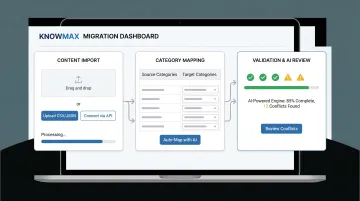
Step 3: Import in Batches and Validate as You Go
Batch importing by category or content type is safer than bulk-importing everything at once. It allows teams to catch formatting breaks, missing attachments, broken internal links, and metadata gaps before they scale across the entire library.
What to check during validation:
- Rich text formatting rendered correctly (numbered steps, callout boxes, bold text)
- All attached files and images present and linked
- Articles appear in correct categories
- Search returns expected results for key query terms
- Internal cross-references and hyperlinks work
Knowmax supports bulk upload via Excel files for FAQs and other content types, along with API-based integrations for structured data transfer out of legacy systems. The platform's AI-powered migration engine has helped Fortune 500 customers save up to $60,000 in migration costs by reducing manual effort and errors.
Step 4: Reconfigure Access, Permissions, and Integrations
With validated content in place, the next step is access configuration. Legacy access controls rarely transfer automatically — migration is the right moment to:
- Define which content is agent-facing versus customer-facing
- Set editing and publishing permissions by role
- Retire outdated access structures that no longer reflect the team's operating model
Knowmax provides role-based access control (RBAC), allowing teams to tailor access by user role, ensuring only authorised personnel can access, update, or restrict information.
Configure integrations with CRM, telephony, or ticketing platforms at this stage. Platforms like Salesforce, Zendesk, Genesys, and Freshchat can be integrated so agents can surface migrated knowledge in-context during live interactions — reducing handle time and keeping responses consistent across every channel.
Key Factors That Affect Migration Quality
Two migrations of similar scale can produce very different outcomes depending on how well four specific variables were controlled.
Content Format Diversity
The wider the range of legacy formats, the higher the risk of formatting loss. PDFs strip heading structure, scanned documents have no extractable text, and proprietary help desk formats export unpredictably — so assessing format diversity before you begin is non-negotiable.
The wider the range of legacy formats, the higher the risk of formatting loss. PDFs strip heading structure, scanned documents have no extractable text, and proprietary help desk formats export unpredictably — so assessing format diversity before you begin is non-negotiable.
Adlib Software reports 80% of enterprise data is trapped in unstructured formats like emails, PDFs, and images. Each format requires different preprocessing:
- PDFs: Extract text, rebuild heading structure
- Spreadsheets: Restructure into tables or decision trees
- Legacy CMS exports: Strip proprietary formatting, clean HTML
Taxonomy and Categorisation Design
A migration built on a poorly designed taxonomy produces a knowledge base that is technically complete but practically unusable. A migration built on a poorly designed taxonomy produces a knowledge base that is technically complete but practically unusable. Content exists, but agents can't locate it in the seconds that count during a live interaction.
The evidence is clear: Forrester documented that Virgin Mobile UK achieved a 19% increase in first call resolution after deploying agent-facing knowledge with proper taxonomy. KCS benchmarks show organisations achieving 30–50% improvement in first contact resolution when findability is optimised.
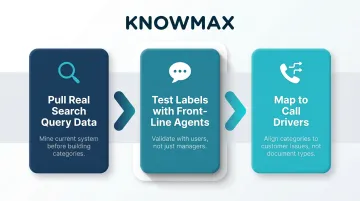
Taxonomy should be designed around how agents search — not how documents were historically stored. Practical starting points:
- Pull real search query data from your current system before building category names
- Test category labels with front-line agents, not just knowledge managers
- Map categories to call drivers, not document types
Metadata Completeness
Without consistent metadata — content owner, last verified date, topic tags, audience type — migrated content cannot be managed at scale. Outdated articles stay published indefinitely because there's no trigger to review them.
A survey of 224 support professionals found 80% of knowledge bases are out of date. The Consortium for Service Innovation puts the useful life of a typical knowledge article at roughly six months before it needs review.
Define metadata standards before migration, not retroactively. Retrofitting metadata to thousands of articles post-migration is often more time-consuming than the migration itself.
Post-Migration Governance Plan
A governance gap is the most common reason a newly unified knowledge base deteriorates within 6–12 months of launch. Without clear ownership and review cycles, the library quietly becomes as outdated as the legacy system it replaced.
Gartner predicts 40% of AI agent deployments will fail by 2027 due to inadequate risk management and poor data integrity — a direct consequence of governance gaps.
A basic governance framework includes:
- Content ownership by category
- Scheduled review cadence (quarterly or biannual)
- Process for flagging outdated articles
- Clear publishing permissions and approval workflows
Knowmax includes governance features — scheduled article reviews, expiry management, content ownership assignment, and approval workflows — built into the platform so these processes run without manual tracking.
Common Mistakes That Lead to Data Loss During Migration
Migrating Without a Pre-Migration Audit
Teams that import everything from legacy systems without triaging content end up with a bloated knowledge base full of duplicates, outdated procedures, and broken documents. CMSWire practitioners identify indiscriminate "forklift" migration as the most common failure pattern — carrying over junk content is harder to fix post-migration than pre-migration.
Treating Migration as a One-Time Technical Task
Migrations without dedicated ownership, a staged timeline, and validation checkpoints consistently produce incomplete or broken knowledge bases that require months of manual cleanup. MatrixFlows found organizations report 40-60% time savings on content updates after consolidation — but only when content is properly audited and cleaned beforehand.
Overlooking Embedded Assets and Internal Links
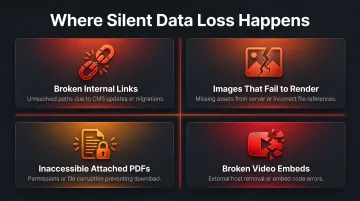
Silent data loss during migration rarely comes from missing text. The real culprits are embedded assets that break during transfer:
- Broken internal links to related articles that no longer resolve
- Images that fail to render after being moved to a new host
- Attached PDFs that become inaccessible when file paths change
- Video embeds that break when the new platform uses a different media hosting method
Skipping User Acceptance Testing Before Go-Live
Agents who use the knowledge base daily should test migrated content before the legacy system is decommissioned. Automated validation catches structural errors but not usability failures — irrelevant search results, poorly named articles, or context that was implicit in the old system's layout.
Frequently Asked Questions
What is a legacy migration?
Legacy migration is the process of moving content, data, or systems from outdated or siloed platforms into a modern, centralised one. In knowledge management, this involves extracting documents from ageing formats and systems and restructuring them in a unified knowledge base.
Is replacing a legacy system worth it?
Yes, when agents spend measurable time hunting for information across disconnected sources, when outdated content is causing support errors, or when the organisation is scaling and the legacy system cannot support consistent knowledge delivery across channels. These are clear signals the migration effort is justified.
What types of legacy documents can be migrated into a knowledge base?
Most formats migrate successfully with the right preparation, including:
- Word documents, PDFs, and Excel-based FAQs
- SharePoint pages and intranet articles
- Legacy ticketing system articles and SOPs
- Training manuals and process guides
Each format may require different preprocessing before import.
How do you avoid losing document formatting during migration?
The safest approach is to validate formatting at the content level — converting documents into the target platform's native format (rather than importing raw files) and running batch validation after each import group to catch rendering failures before they accumulate.
How long does it take to migrate a legacy knowledge base?
Timelines depend on content volume, format diversity, and how much cleanup is required. A well-audited migration of a few hundred articles can be completed in 2-3 weeks. Enterprise migrations involving thousands of documents across multiple systems typically require a phased approach over several months.
What is the difference between migrating and rebuilding a knowledge base from scratch?
Migration preserves existing institutional knowledge and restructures it into a new system. A rebuild starts from zero. Migration makes sense when legacy content is accurate and substantial. A rebuild is the better call only when existing content is too fragmented or outdated to salvage.